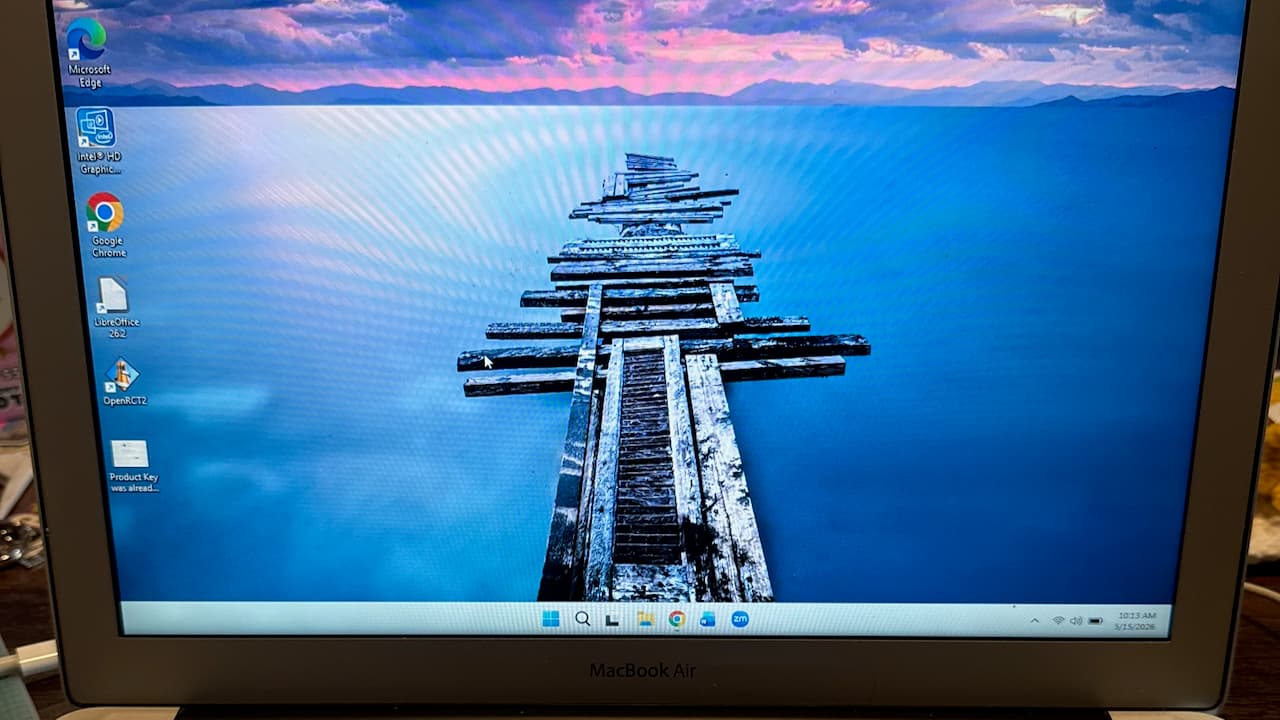
Install Windows 11 on almost anything
A tutorial covering clean installation of Windows 11 using Rufus, including prep, driver backup, and Intel Mac hardware support.
Drew King, Claude
A tutorial covering clean installation of Windows 11 using Rufus, including prep, driver backup, and Intel Mac hardware support.
Drew King, Claude
This guide documents the full process of performing a clean, bloat-free Windows 11 installation across PC and Intel Mac hardware. It covers everything from disabling BitLocker and FileVault before install, to exporting drivers with DISM, fetching Boot Camp drivers without macOS using a Python 3 script, and re-injecting drivers post-install via pnputil. Originally written to help a family member, it evolved into a comprehensive technical reference covering edge cases most guides skip entirely.
Table of Contents
What This Guide Covers
This guide walks through a clean, privacy-respecting installation of Windows 11 using Rufus to bypass Microsoft's more restrictive setup requirements and remove default telemetry. It is written for users with baseline Windows familiarity and covers:
- Pre-installation data and driver backup
- Bootable USB creation via Rufus with a custom Windows User Experience configuration
- Mac hardware driver acquisition via brigadier-python3 (a Python 3 port of Tim Sutton's original brigadier tool)
- OEM driver export and re-injection for PC hardware
- Post-install driver installation and system hardening
⚠️ A clean install permanently erases all data on the target drive. Complete Parts 0 and 1 in their entirety before proceeding.
Prerequisites
Confirm each of the following before starting.
☐ 1. USB Flash Drive — 16 GB or larger (Installation Media) This drive will be completely erased and used as the Windows installer and driver files. Use a blank or expendable drive.
☐ 2. USB Drive or External Hard Drive — 64 GB or larger (Backup) Used to back up files and exported drivers. This drive will not be erased.
☐ 3. A Working Windows Machine The machine you will install Windows onto, or a separate machine to prepare media on.
☐ 4. Internet Connection Required to download Rufus, the Windows ISO, and for Windows Update post-install. A wired Ethernet connection is preferred — this guarantees network connectivity during setup, allowing Windows to pull drivers automatically.
☐ 5. Enough Time — 3 to 5 Hours Depending on hardware and internet speed. Do not start this process if you need the machine soon.
☐ 6. Your Wi-Fi Credentials (if not using Ethernet) Have your SSID and passphrase written down. Check the label on your router if needed.
☐ 7. Windows Product Key (if applicable) Not needed if Windows came pre-installed — the key is embedded in firmware and will be detected automatically. Required only if you purchased Windows separately.
☐ 8. A List of Software to Reinstall All installed applications will be wiped. Note anything you need to reinstall.
Part 0 — Pre-Installation: Disk Encryption
Both Windows and macOS encrypt the system drive by default. Active encryption will prevent the Windows installer from partitioning the target drive. Complete the relevant subsection for your platform before proceeding. Both decryption processes run in the background and can take several hours — start this step first.
Windows — Disable BitLocker
BitLocker encrypts the system drive. If active during installation, it will prevent the installer from accessing and partitioning the drive.
Step 0.1 — Open Settings → Privacy & Security → Device Encryption, or search for Manage BitLocker in the Start menu.
Step 0.2 — If BitLocker is on, click Turn off next to the system drive (typically C:). Confirm when prompted.
Step 0.3 — Decryption runs in the background and can take several hours on large or nearly-full drives. You can monitor progress from the same BitLocker settings panel. The machine can remain in use during this process, but do not shut it down or restart until decryption completes.
You can verify decryption is complete by running the following in an elevated Command Prompt:
manage-bde -status C:
Look for Protection Status: Protection Off and Conversion Status: Fully Decrypted.
Mac — Disable FileVault
FileVault is macOS's full-disk encryption. On Intel Macs without a T2 chip, FileVault must be fully decrypted before the Windows installer can access the drive. On T2-equipped Macs, the drive is hardware-encrypted at all times, but disabling FileVault removes the software encryption layer on top — this is still required before installation.
Step 0.4 — Check whether FileVault is active. Open Terminal (Applications → Utilities → Terminal) and run:
sudo fdesetup status
If the output reads FileVault is Off, skip to Step 0.7. If it reads FileVault is On, continue below.
Step 0.5 — Disable FileVault via System Settings:
- macOS Ventura and later: Apple menu → System Settings → Privacy & Security → scroll to FileVault → click Turn Off
- macOS Monterey and earlier: Apple menu → System Preferences → Security & Privacy → FileVault tab → click the lock to authenticate → click Turn Off FileVault
Alternatively, disable it from Terminal:
sudo fdesetup disable
Enter your administrator password when prompted. You will then be asked for your macOS username and password to authorize the decryption key.
Step 0.6 — Decryption runs in the background. Monitor progress with:
sudo fdesetup status
Wait until the output reads FileVault is Off before proceeding. On T2 Macs this is typically fast (under 5 minutes); on older spinning-disk Macs it can take several hours.
If FileVault cannot be disabled from a normal boot (e.g., the option is greyed out or fdesetup returns an error), boot into macOS Recovery (Cmd + R at startup on Intel Macs), open Terminal from the Utilities menu, and run:
diskutil apfs list
Note the identifier of the FileVault-enabled Data volume (e.g., disk3s1), then run:
diskutil apfs disableFileVault disk3s1 \-user disk
Enter the volume password when prompted. Monitor decryption progress with diskutil apfs list until the volume no longer shows as encrypted.
Mac — Disable T1/T2 Secure Boot and Allow External Boot
Intel Macs produced from 2016 onward may include a T1 or T2 security chip. These chips enforce Secure Boot and, by default, block booting from external media — which will prevent the Windows installation USB from loading. This step is required on affected hardware.
Which Macs have a T1 or T2 chip?
- T1: MacBook Pro (Late 2016 and 2017) — handles the Touch Bar and Touch ID; does not enforce Secure Boot or block external media on its own. T1 Macs generally do not require this step.
- T2: MacBook Air (2018+), MacBook Pro (2018+), Mac mini (2018+), iMac Pro (2017), Mac Pro (2019) — enforces Secure Boot and blocks external boot by default. T2 Macs require this step.
To check whether your Mac has a T2 chip, hold Option (⌥) and click the Apple menu → System Information → select Controller in the left sidebar. If a T2 chip is present, it will be listed there.
Step 0.7 — Shut down the Mac completely.
Step 0.8 — Boot into macOS Recovery. Hold Cmd (⌘) + R immediately after pressing the power button, and continue holding until the Apple logo appears. Release the keys and wait for Recovery to load. Authenticate with your administrator account if prompted.
Step 0.9 — From the menu bar, click Utilities → Startup Security Utility. Enter your macOS administrator password when prompted.
Step 0.10 — Under Secure Boot, select No Security. This allows the Mac to boot unsigned or non-Apple operating systems.
Step 0.11 — Under External Boot, select Allow booting from external or removable media. This allows the Mac to boot from the Windows installation USB.
Step 0.12 — Close the Startup Security Utility and shut down the Mac. It is now ready to boot from the installation USB.
⚠️ Re-enable after installation: These settings reduce the security posture of the machine. Once Windows is installed and running, you may wish to re-enable Secure Boot in the Startup Security Utility if you do not intend to boot from external media again. Boot back into macOS Recovery and reverse Steps 0.10 and 0.11.
Note: If a firmware password is set on the Mac, you will be prompted for it when entering the Startup Security Utility. If you do not know the firmware password, it cannot be bypassed without contacting Apple Support or an Apple Authorized Service Provider — do not proceed without it.
Part 1 — Back Up Your Data
Backing Up Files
Step 1.1 — Plug in your backup drive.
Step 1.2 — Open File Explorer and note the drive letter assigned to your backup drive (e.g., E:).
Step 1.3 — Navigate to C:\Users\[YourUsername]\ and copy the following folders to your backup drive:
- Documents
- Pictures
- Downloads
- Desktop
- Music
- Videos
Select all (Ctrl + A), copy (Ctrl + C), navigate to the backup drive, and paste (Ctrl + V). Wait for the transfer to complete before proceeding.
Step 1.4 — Verify the files are present on the backup drive before ejecting it. Right-click the drive in the system tray and select Eject. Set the backup drive aside — do not use it again until the install is complete.
Exporting Chrome Passwords
If you use Chrome's built-in password manager, export your credentials before wiping the machine.
Step 1.5 — Open Chrome and navigate to:
chrome://password-manager/passwords
Step 1.6 — Click Settings in the left sidebar (gear icon ⚙).
Step 1.7 — Under Export passwords, click Download file or Export passwords.
Step 1.8 — Chrome will warn that the file will contain passwords in plain text. Acknowledge the prompt. You may be asked to authenticate with your Windows PIN or password.
Step 1.9 — In the Save As dialog, navigate to your Desktop and save the file. It will be named something like Chrome Passwords.csv.
Step 1.10 — When you back up your Desktop in Step 1.3, this file will be included automatically. After reinstalling Windows, you can import it by navigating to chrome://password-manager/passwords → Settings → Import passwords and selecting the CSV from your backup drive.
⚠️ This file contains all your saved passwords in plain text. Treat it like a physical key — keep the backup drive somewhere secure and do not share or email this file.
Part 2 — Download Rufus
Rufus is an open-source USB preparation utility maintained by Pete Batard. It is used here to write the Windows ISO to the installation USB and to configure the Windows User Experience settings pre-install.
Step 2.1 — Open the Rufus Official Website and download the latest stable release (e.g., rufus-4.14.exe). Use the standard installer, not the Portable version.
Step 2.2 — Your browser may flag the download. If prompted, allow it to proceed — Rufus is a well-established and widely audited tool.
Step 2.3 — Do not open Rufus yet. Proceed to Part 3.
Part 3 — Download the Windows 11 ISO
Download the official Windows 11 disk image directly from Microsoft.
Step 3.1 — Open the offical Micorost Windows 11 download page.
Step 3.2 — Scroll past the Installation Assistant section at the top. Find the section titled Download Windows 11 Disk Image (ISO) for x64 devices.
Do not use the Installation Assistant — it performs an in-place upgrade, not a clean install.
Step 3.3 — From the dropdown, select Windows 11 (multi-edition ISO for x64 devices) and click Download Now.
Step 3.4 — Select your language (e.g., English (United States)) and click Confirm.
Step 3.5 — Click 64-bit Download. The ISO is approximately 5–6 GB. Download time will vary with connection speed.
Step 3.6 — Once complete, the file will appear in your Downloads folder with a name like Win11_25H2_English_x64.iso. Do not mount or extract it — Rufus will handle it directly.
Part 4 — Create the Installation USB with Rufus
Step 4.1 — Plug in the 16 GB (or larger) USB drive you designated for the Windows installer.
Step 4.2 — Note the drive letter assigned to the USB in File Explorer (e.g., E:). If you have multiple USB drives connected, consider unplugging others to avoid selecting the wrong target.
Step 4.3 — Launch Rufus (rufus-4.14.exe). Accept the UAC prompt.
Step 4.4 — Under Device, confirm the correct USB drive is selected. Verify the drive letter and reported size match your installation media drive.
⚠️ Selecting the wrong drive will result in permanent data loss on that drive. Double-check before proceeding.
Step 4.5 — Under Boot selection, choose Disk or ISO image (Please select) from the dropdown, then click SELECT and navigate to the ISO downloaded in Part 3.
Step 4.6 — Confirm Image option reads Standard Windows Installation.
Step 4.7 — Leave Partition scheme as GPT and Target system as UEFI (non CSM) unless you are targeting legacy hardware (pre-2012), in which case use MBR / BIOS or UEFI.
Step 4.8 — Click START.
Step 4.9 — The Windows User Experience dialog will appear. Configure the checkboxes as follows:
| Option | Setting |
|---|---|
| Prevent Windows 11 Setup from requiring an online Microsoft account | ✅ Enabled |
| Remove requirement for 4GB+ RAM, Secure Boot, and TPM 2.0 | ✅ Enabled |
| Remove requirement for an internet connection during Windows Setup | ✅ Enabled |
| Create a local account with username | ✅ Enabled — enter the desired username |
| Disable data collection (Skip privacy questions) | ✅ Enabled |
| Disable BitLocker automatic device encryption | ✅ Enabled |
Click OK.
Step 4.10 — Confirm the destruction warning by clicking OK. Rufus will write the ISO and apply the configuration. This takes 5–15 minutes depending on USB write speed.
Step 4.11 — When the status bar reads READY, click CLOSE. Leave the USB plugged in and proceed to Part 5 to add drivers before booting.
Part 5 — (Optional) Add Drivers to the Installation USB
Once Rufus has written the Windows installer, the USB drive will have remaining free space available. Driver files can be copied into a folder on that same USB so they are accessible immediately after the install completes — no second drive required during the post-install phase.
This is particularly useful when:
- The machine lacks network connectivity post-install (no Ethernet, or Wi-Fi driver not auto-installed)
- You are installing on Intel Mac hardware without Boot Camp Assistant
- You are working with hardware whose drivers are no longer available from the manufacturer
Note: Rufus formats the USB with a Windows-readable NTFS partition alongside the installer. Simply create a
Driversfolder in the root of the USB drive and copy your driver files there. The Windows installer will not touch this folder during setup.
Exporting Drivers (Windows PC)
Skip this subsection if you are installing on Mac hardware. See Mac Hardware — Boot Camp Drivers via brigadier-python3 for Boot Camp driver acquisition.
If your machine has hardware with drivers that may not be available via Windows Update (e.g., older or discontinued hardware, specialty peripherals, or enterprise NICs), export the currently installed drivers before wiping.
Step 5.1 — Open Command Prompt as Administrator. Right-click the Start button and select Terminal (Admin) or Command Prompt (Admin).
Step 5.2 — Create a Drivers folder on the installation USB. Substitute the drive letter of your USB as needed:
mkdir E:\Drivers
Step 5.3 — Export all third-party drivers for your computer
Option A — using DISM:
dism /online /export-driver /destination:"E:\Drivers"
This exports all non-Microsoft drivers from the Windows Driver Store to the USB. The export typically completes in 2–10 minutes depending on how many drivers are installed.
Option B — Use pnputil, which also captures .pnf files that DISM omits:
pnputil /export-driver \* "E:\Drivers"
Note: DISM is generally preferred for clean export. Use
pnputilif you encounter issues with Device Manager failing to load restored drivers, as it preserves additional metadata.
Step 5.4 — The USB drive is now ready to boot from and carry your drivers. Proceed to Part 6, or continue below to also add Mac or OEM drivers if relevant to your hardware.
Mac Hardware — Boot Camp Drivers via brigadier-python3
⚠️ Intel Macs only. Boot Camp and the drivers distributed via Apple's software update catalog are exclusively supported on Intel-based Mac hardware. Apple Silicon Macs (M1 and later) use a fundamentally different architecture and do not support Windows via Boot Camp or any equivalent driver package. This section does not apply to Apple Silicon machines.
Apple's Boot Camp drivers are required for correct hardware support on Intel Macs running Windows — including keyboard, trackpad, audio, Wi-Fi, Bluetooth, and GPU. Boot Camp Assistant (macOS) is the standard method for downloading these, but it requires being booted into macOS and is unavailable on systems already running Windows or where macOS has been removed.
brigadier-python3 is a Python 3 port of Tim Sutton's original brigadier script. It fetches the correct Boot Camp ESD (Electronic Software Distribution) package directly from Apple's software update catalog based on your Mac's model identifier, without requiring macOS or Boot Camp Assistant.
Prerequisites for this section:
- Python 3 installed (python.org)
- 7-Zip installed if on Windows (7-zip.org) — used to extract the Boot Camp package
- Another USB formatted as
exFATif using Mac or a program such as DoneMax to writeNTFSvolumes - Your Mac model identifier (e.g.,
MacBookAir 7,2)
Finding your Mac model identifier:
On macOS, run:
system_profiler SPHardwareDataType | grep "Model Identifier"
On Windows (if already installed), run in PowerShell:
Get-WmiObject -Class Win32_ComputerSystem | Select-Object -ExpandProperty Model
Or check: Start → System Information → System Model.
Step 5.5 — Clone or download the brigadier-python3 repository (forked for Python 3 support):
Download the ZIP from GitHub and extract it to a working directory, or clone via Git:
git clone https://github.com/andrewpking/brigadier-python3.git
Step 5.6 — Open a Command Prompt or PowerShell in the directory where brigadier-python3 was extracted.
Step 5.7 — Run brigadier to download the Boot Camp ESD for your model. Replace MacBookAir 7,2 with your actual model identifier:
python brigadier --model MacBookAir 7,2
No --output-dir specified: By default, brigadier outputs to the current working directory — the folder where you ran the command. Note the path printed during execution so you know where the files land.
Running on macOS before the install: If you still have access to macOS, you can run brigadier there. It will output a .dmg file, which can be natively extracted on macOS and copied into your USB installation drive.
python3 brigadier --model MacBookAir 7,2
Step 5.8 — brigadier will query Apple's software catalog, download the correct Boot Camp ESD for your model, and save it to the working directory. This may take several minutes depending on the package size (~1–2 GB).
Step 5.9 — Unpack the downloaded .dmg file. Navigate to the directory brigadier output to, then right-click the .dmg and open it with 7-Zip → Extract here (or to a subfolder of your choice).
Step 5.10 — Copy all of the unpacked files to the Drivers folder on the installation USB (e.g., E:\Drivers\BootCamp\... ). Since this drive is formatted as NTFS, if you are using a Mac you have two opttions:
Option A — Use another storage medium formatted as exFAT to contain the driver files and use this for keeping drivers
Option B — Use a tool that allows for macOS to write to NTFS volumes such as DoneMax.
Step 5.11 — Safely eject the installation USB when complete.
Note on Windows 11 and older Mac models: Apple officially supports Boot Camp only for Windows 10 on Intel Macs. Windows 11 can be installed on unsupported Mac models using the TPM/Secure Boot bypass in Rufus (Step 4.9), but some hardware — particularly Bluetooth on older models with Boot Camp 6.1 drivers — may have known compatibility issues. Check brigadier's issue tracker for model-specific notes.
PC Hardware — OEM Driver Downloads
For standard PC hardware, Windows Update handles most driver installation automatically when connected to the internet during setup. However, for hardware with discontinued or hard-to-find drivers, pre-staging them is worthwhile.
Option A — Use the DISM export from this part (recommended)
If you exported drivers in Step 5.3, those driver files are already on the installation USB. After installing Windows, you can inject them using pnputil (covered in Part 9 — Installing Drivers).
Option B — Download manually from your OEM
If you are installing on a machine where drivers were not previously installed (e.g., a new build or replacement motherboard), download drivers directly from the manufacturer and copy them to the Drivers folder on the USB:
| Manufacturer | Driver Portal |
|---|---|
| Dell | dell.com/support |
| HP | support.hp.com |
| Lenovo | support.lenovo.com |
| ASUS | asus.com/support |
| Acer | acer.com/support |
| MSI | msi.com/support |
| Gigabyte | gigabyte.com/support |
| AMD (GPUs/CPUs) | amd.com/support |
| NVIDIA (GPUs) | nvidia.com/drivers |
| Intel (chipset/NIC) | intel.com/support |
Prioritize network and storage controller drivers — without these, Windows Update cannot reach the internet to pull others.
Part 6 — Boot from the USB Drive
Method A — Boot Menu Key
Step 6.1 — With the installation USB plugged in, restart the machine.
Step 6.2 — Immediately after the screen goes dark, press the boot menu key repeatedly (~1 press/second) until the boot menu appears. The key varies by manufacturer:
| Manufacturer | Boot Menu Key |
|---|---|
| Dell | F12 |
| HP | F9 or Esc |
| Lenovo | F12 or F11 |
| Acer | F12 |
| ASUS | F8 or Esc |
| Samsung | Esc or F12 |
| Toshiba / Dynabook | F12 |
| MSI | F11 |
| Gigabyte | F12 |
| Apple (Mac) | Option (⌥) |
If your model is not listed, search [manufacturer model] boot menu key.
Step 6.3 — In the boot menu, use the arrow keys to select the USB drive. It will typically appear as the drive brand name or as UEFI: [Drive Name]. Press Enter.
Step 6.4 — The Windows Setup screen will appear after a brief loading period. If the boot menu did not appear, proceed to Method B.
Method B — BIOS/UEFI Boot Order
Step 6.5 — Restart and enter the BIOS/UEFI firmware using the appropriate key:
| Manufacturer | BIOS Key |
|---|---|
| Dell | F2 |
| HP | F10 or Esc |
| Lenovo | F1 or F2 |
| Acer | F2 or Delete |
| ASUS | F2 or Delete |
| MSI / Gigabyte | Delete |
| Apple (Mac) | Option (⌥) at boot, then EFI Boot |
Step 6.6 — Navigate to the Boot or Boot Order tab using the arrow keys.
Step 6.7 — Move the USB drive to the top of the boot order. Depending on the firmware, use +/-, F5/F6, or drag-and-drop (on UEFI GUIs with mouse support).
Step 6.8 — Press F10 to save and exit. The machine will restart and boot from the USB.
Part 7 — Install Windows 11
Step 7.1 — On the Windows Setup screen, confirm the Language, Time and currency format, and Keyboard or input method settings. Click Next.
Step 7.2 — Click Install now.
Step 7.3 — If prompted for a product key, enter it. If Windows came pre-installed, click I don't have a product key — the embedded firmware key will be detected automatically during or after installation.
Step 7.4 — Select the Windows edition to install. Choose the same edition previously installed (typically Windows 11 Home for consumer hardware). Click Next.
Step 7.5 — Accept the license terms and click Next.
Step 7.6 — Select Custom: Install Windows only (advanced).
Step 7.7 — The partition table for the target drive will be displayed. Identify the largest partition — this is the primary Windows partition and the one to delete.
The smaller partitions (typically 100–650 MB) are the EFI System Partition and Windows Recovery partition. Leave these intact. Deleting them is unnecessary for a clean install and may complicate booting.
Step 7.8 — Select the largest partition and click Delete. Confirm the prompt.
Step 7.9 — Select the resulting Unallocated Space and click Next. Windows will create the required partition structure and begin installation.
Installation takes 20–45 minutes. The machine will restart several times. Do not press any key if prompted to boot from CD or DVD — allow it to continue automatically from the hard drive.
Step 7.10 — After the final restart, the system will transition into first-time setup (OOBE). Proceed to Part 8.
Part 8 — First-Time Setup
The Rufus configuration applied in Part 4 suppresses most of the OOBE prompts. Expect a shorter-than-default setup flow.
Step 8.1 — Select your country or region and click Yes.
Step 8.2 — Select your keyboard layout and click Yes. Skip adding a second layout unless needed.
Step 8.3 — Connect to the internet if prompted. Select your Wi-Fi network and enter the passphrase, or allow Ethernet to connect automatically.
If you selected Remove requirement for an internet connection in Rufus, you can bypass this screen if needed. Connecting now is recommended to allow Windows Update to run immediately after setup.
Step 8.4 — Windows will check for updates. This may take a few minutes. A local account with the username entered in Rufus will be created automatically — no Microsoft account prompt will appear.
Step 8.5 — Windows will finish loading the desktop. You will see the account name you configured in Rufus displayed on the lock/login screen if you log out.
Part 9 — Post-Install Steps
Windows Update
Run Windows Update immediately to apply security patches and let Windows pull any missing drivers via the Windows Update Driver Store.
Step 9.1 — Open Settings → Windows Update → Check for updates.
Step 9.2 — Install all available updates. Restart when prompted.
Step 9.3 — Repeat until You're up to date is displayed. Multiple update passes are common on a fresh install.
Installing Drivers
Step 9.4 — Open Device Manager (right-click Start → Device Manager) and look for any devices with a yellow warning icon (⚠️). These indicate missing or failed drivers.
Step 9.5 — If you have a driver export on the installation USB (from Part 5):
Plug the USB back in. Open an elevated Command Prompt and run:
pnputil /add-driver "E:\Drivers\*.inf" /subdirs /install /reboot
Replace E:\Drivers with the actual path to your driver folder on the USB. The /reboot flag will trigger an automatic restart if required — save any open work first.
Step 9.6 — If you are on Mac hardware:
Run the Boot Camp Setup installer from the USB in Windows:
**Step A — ** plug the USB back in and run the Boot Camp installer:
E:\Drivers\BootCamp\Setup.exe
Or navigate to that path in File Explorer and double-click Setup.exe. Follow the installer prompts and restart when complete.
Step 9.7 — If drivers are still missing after the above:
Check Device Manager for the Hardware ID of the unrecognized device:
- Right-click the device → Properties → Details tab → Set Property to Hardware IDs
- Copy the top entry (e.g.,
PCI\VEN_8086&DEV_1234) - Search this ID at https://devid.info or the relevant OEM support portal to identify the device and find the correct driver
Restoring Files
Step 9.8 — Plug in your backup drive. Open File Explorer and copy your backed-up folders back to their corresponding locations under C:\Users\[Username]\:
DocumentsPicturesDownloadsDesktopMusicVideos
Restoring Chrome Passwords
Step 9.9 — Install Chrome (google.com/chrome) and open it.
Step 9.10 — Navigate to:
chrome://password-manager/passwords
→ Settings → Import passwords → Select file.
Step 9.11 — Navigate to your backup drive and select Chrome Passwords.csv. Chrome will import all saved credentials and display a summary of the import.
Finishing Touches
Step 9.12 — Log out and back in when prompted to set an account password.
Step 9.13 — Write your password down and keep it somewhere secure.
Step 9.14 (Optional) — Reinstall software from your prerequisite list. Common downloads:
| Application | URL |
|---|---|
| Google Chrome | google.com/chrome |
| Mozilla Firefox | mozilla.org/firefox |
| Adobe Acrobat Reader | get.adobe.com/reader |
| VLC Media Player | videolan.org |
| 7-Zip | 7-zip.org |
Step 9.15 (Optional — not reversible) — Sign into a Microsoft account via Settings → Accounts → Your info if you prefer a managed account. Note that this step links the machine to a Microsoft account permanently unless you later switch back to a local account.
Appendix — Common Issues
A. Boot menu does not appear
The boot menu window is 1–2 seconds — press the key immediately and repeatedly as the screen goes dark. If Fast Startup is enabled, hold Shift while clicking Restart to force a full reboot, then try the boot key again. As a fallback, change the boot order in BIOS (Method B).
B. "This PC can't run Windows 11"
Confirm the Remove requirement for 4GB+ RAM, Secure Boot, and TPM 2.0 checkbox was enabled in the Rufus Windows User Experience dialog (Step 4.9). If not, redo Part 4 with the correct settings.
C. Rufus returns an error
Verify the ISO downloaded completely — it should be approximately 5–6 GB. A smaller file indicates an incomplete download. Re-download from Microsoft. Also try a different USB port, or run Rufus as Administrator.
D. Partition deletion fails
If the installer cannot delete a partition, try formatting it first, then deleting. If deletion still fails, use diskpart from the Windows Setup recovery console or a live Linux environment to clean the disk before running Setup again.
E. Windows Setup cannot find a drive
This typically indicates a missing NVMe or SATA controller driver. You will need to load the storage driver during Setup: click Load driver on the partition selection screen, insert the driver USB, and browse to the storage controller driver (usually from the chipset or SSD manufacturer package).
F. Microsoft account prompt cannot be skipped
If the account prompt appears despite Rufus settings, look for Sign-in options → Offline account or Domain join instead at the bottom of the screen. As a last resort, disconnect from the network — Setup cannot enforce an online account without internet access.
G. Windows activation fails
On OEM machines, the product key is embedded in the UEFI firmware and should activate automatically once connected to the internet. Go to Settings → System → Activation and click Troubleshoot if activation does not complete within a few hours. If you have a retail key, enter it via Change product key on the same page.
H. Drivers not recognized after pnputil import
If Device Manager still shows unrecognized devices after running pnputil, try opening the device properties → Update driver → Browse my computer → point to the Drivers folder on the USB with Include subfolders checked. This forces Device Manager to scan the folder directly. If the driver is still not found, the hardware ID may require a driver not included in your export — source it from the OEM portal.
I. Boot Camp drivers partially failing on Windows 11
Bluetooth is a known pain point with Boot Camp 6.1 drivers on Windows 11 on older Intel Macs. Check the brigadier issue tracker and the brigadier-python3 repository for model-specific workarounds. In some cases, replacing Apple's Bluetooth stack with a generic Broadcom driver resolves the issue.
J. Microsoft account pop-ups after setup
Windows periodically prompts to connect to a Microsoft account. Dismiss these by clicking X or No, thanks. They typically stop appearing after the first week.
K. Forgotten local account password
Local account passwords cannot be reset via Microsoft's online tools. If you lose access, you will need to use an offline recovery tool (e.g., booting a Linux live USB and using chntpw to reset the password, or re-running Setup and creating a new account). Keep credentials written down in a secure location.